Client Dashboard Setup
Create your account and download the mobile app
For the beta testing, it is very important to setup your account on your desktop first.
Once you create your account, and login into your account successfully, you will be able to download the mobile app on your phone to access it there as well.
Setup your account
1. Before setting up your Regal Credit account, ensure that you already have one of the following Authenticators installed on your mobile device. (you can get any of these from the Apple or Google Play store if you do not already have it installed)
- Microsoft Authenticator
- Google Authenticator
- FreeOTP
2. From your desktop, find the “Update your account” email from sso.regalcredit.com and click on the Verify your account button as shown below.

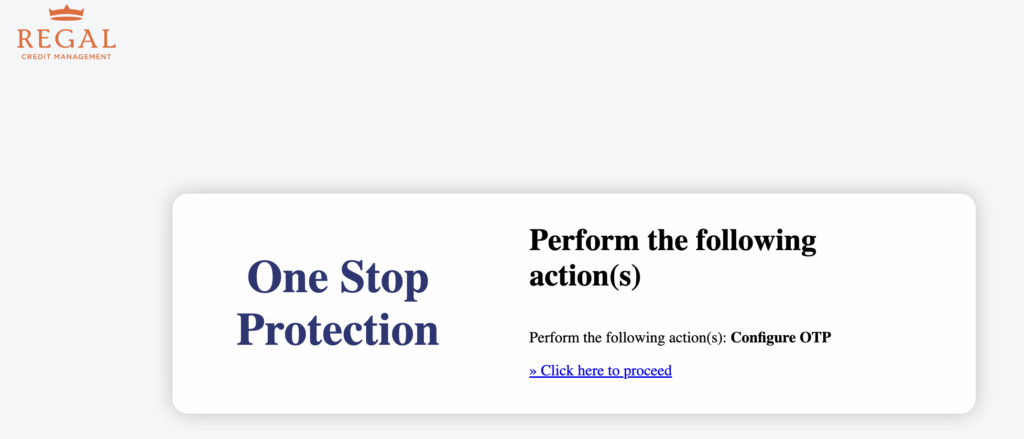
3. Click on the Click here to proceed link on the “Regal Credit Management” page
4. Scan the QR code on the “Mobile authenticator Setup” page that has been automatically opened for you in your browser (your QR code is unique to you, so be sure to only scan the one provided to you)
- If you are unable to scan the QR code, click on the Unable to scan? link to use a passkey instead and follow those on-screen directions
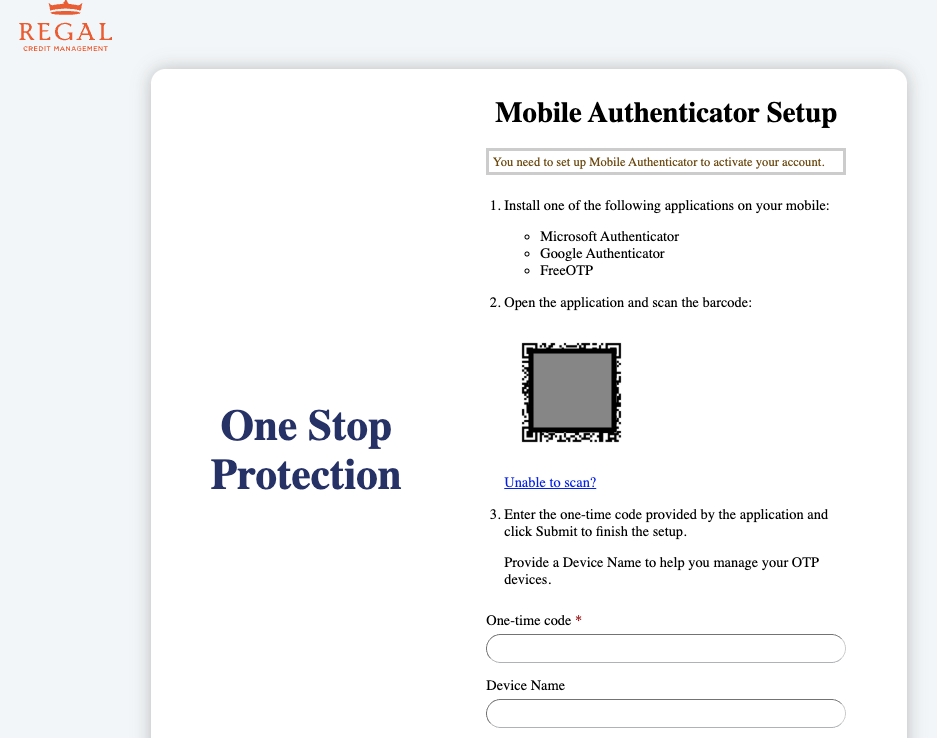
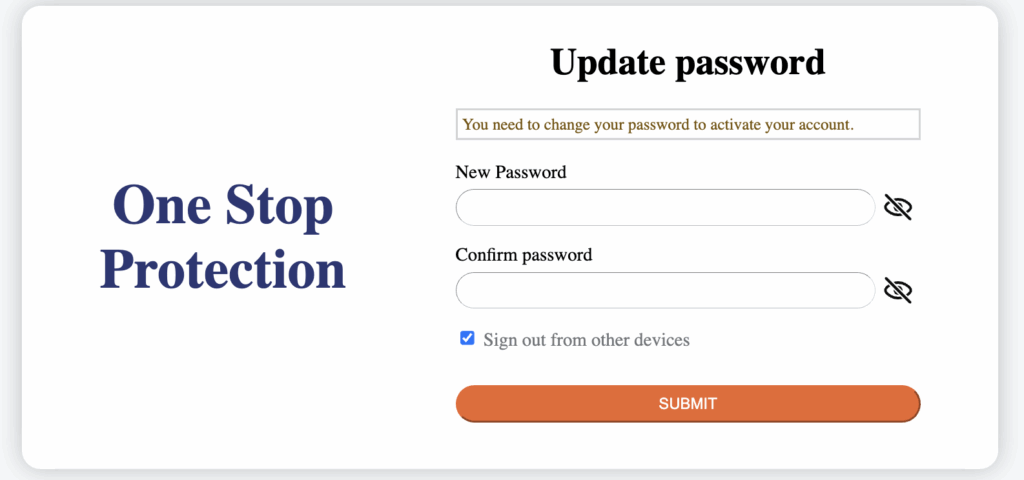
5. Enter in your One-time code from your Authenticator app and hit submit. Create a password for your account and click submit to complete the setup.
Login to your account
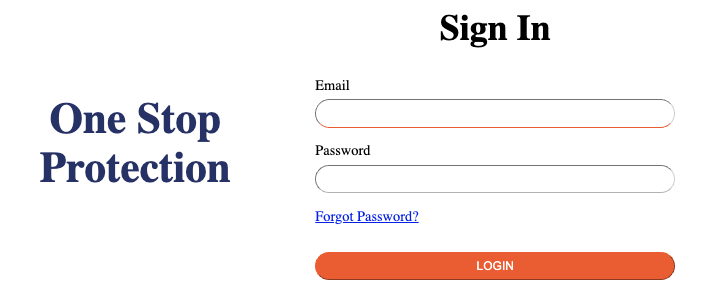
Open the https://partner.dev.regalcredit.com/ page in your browser on your desktop. You will probably want to bookmark this page for easy future access.
Enter your email address and password, and click Login. You will be prompted to also then enter the code from your Authenticator app.
Mobile app access
- Download the app onto your mobile device.
- Apple – from a browser on your iPhone mobile device, click on
- Android – from a browser on your Android mobile device, click on this link to download.
- Open your app. Enter your email address, your password, and the code from your Authenticator app.